> For the complete documentation index, see [llms.txt](https://overay-inc.gitbook.io/overaydesk/llms.txt). Markdown versions of documentation pages are available by appending `.md` to page URLs; this page is available as [Markdown](https://overay-inc.gitbook.io/overaydesk/guide/desk-tools/note.md).
# Note
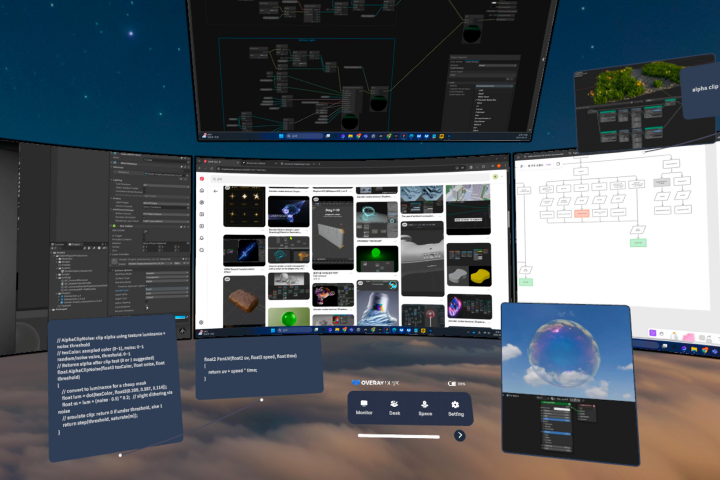
Seamlessly manage and organize your information in 3D space, integrating notes into your PC workflow with ease.
{% hint style="info" %}
**When to Use Note?**
1. **Quickly Capture Ideas**\
Instantly jot down thoughts and concepts as they come to you, keeping your workflow uninterrupted.
2. **Pin Information for Easy Reference**\
Need to keep essential information visible? Pin your notes in place and access them whenever you need.
3. **Structure Relationships Between Ideas**\
Use mind maps to link related notes and visualize their connections, helping you organize your ideas in a clear 3D layout.
{% endhint %}
## Note Creation Process
To use the notes, **PC Connect must be enabled**.
1. PC Shortcut **`Alt + Q`** / **`Option + Q`** Input
2. Enter text or paste using `Ctrl+C/V` / `Command + C/V`
3. Press **`Ctrl+Enter`** / **`Command + Return`** to complete and save the note
{% hint style="info" %}
Starting with version 2.5.0, PC Note now supports text formatting.
{% endhint %}
### Note Pop
You can also create notes using **Note Pop**, without using PC shortcuts.
1. Open **Main Menu > Expand button**
2. Select **Note Pop** to activate it in your space
1. Press and hold the button to place Note Pop directly in front of you
3. Press **`+`** to create a new note under Note Pop
4. Enter text, then press **Ctrl+Enter** or select the **Done** button to complete the note
{% hint style="warning" %}
Note Pop is available when your PC is connected.
{% endhint %}
***
## Note Control
### 1. Edit
When you click the Edit button, the corresponding note will be activated on your PC, allowing you to make edits.
### 2. Copy
Click the Copy button to send the note’s content to your clipboard, making it easy to paste on your PC.
### 3. Delete
When you click the Delete button, the note will be immediately deleted in VR.
### 4. Fold
If the note exceeds 6 lines of text in the VR Note, a 'Fold' button will appear. Clicking it will reduce the note to its default size, and clicking again will reveal the full content.
### 5. Size
**Pinch with two hands** and pull outward to make it bigger, or inward to make it smaller.
***
## Mind map
### 1. Connect
**Double-click** on a note, then click the other note you want to link, and the line will be connected.
### 2. Disconnect
If you **pinch and drag the connected line between notes outward**, it will turn red. Once you release the pinch, the line will be deleted.
### 3. Move Group
If you **pinch and hold one of the mind map notes for 2 seconds without moving it**, it will enter group move mode. While still pinching, you can move it to your desired position, and once you release the pinch, the note will be placed there.
### 4. Collapse Group
Notes connected through a mind map will display a Minimize button. Clicking this button will **hide all other connected notes** relative to the selected one, allowing them to be **managed as a single note**.
{% hint style="info" %}
While notes are minimized, editing, pasting from PC, and mind map functionality are unavailable. Deleting will remove all notes, including hidden ones.
{% endhint %}
***
## Image
You can add images to the PC note window in two ways.
### **1. Ctrl+V**
* Copy an image and press **Ctrl+V** to paste it into the note window, transferring it to VR.
### 2. Drag & Drop
* Simply drag an image and drop it into the note window to upload it.
To replace the image or enter text, click the **Edit** button and press the **Backspace** key to delete the image.
{% hint style="info" %}
* Images can only be pasted when there is no text in the PC note window. Please note that **text and images are transferred separately at the moment.**
* The image loading speed in VR may vary with its resolution. Once loaded, press the send button or use the shortcut key to complete.
{% endhint %}
***
## URL Link
If you add a URL in the note, it will create a **clickable link note in VR**. If multiple URLs are included, the top URL will be displayed as the link.
{% hint style="info" %}
**Note FAQ**
* **Language Support**: English, Korean, and Japanese are currently supported, with more languages planned for the future.
* **Shortcut Customization**: Changing the shortcut for note creation from Alt+Q to another key will be supported in the future.
* **Note Recovery**: Currently, deleted notes cannot be recovered. Please double-check before deleting important records.
* **Note Creation Limit**: During the beta period, there are no limits on the number of notes you can create. However, once the beta period ends, there may be a limit on the number of notes.
* **Note Line Limit**: Notes are limited to 50 lines. Entering too much text may make the note difficult to manage, so please use caution.
* **Image Size Limit:** Images can be added to notes, but each image is limited to a maximum size of 5MB.
{% endhint %}