# Initial Setup
## [Get OVERAY DESK on Meta Quest Store](https://www.meta.com/experiences/7028370967196772).
* Visit the Meta Quest Store and search for "OVERAY DESK."
* **Download and install the application** on your Meta Quest device.
## [Register for free on our Website](https://accounts.overaystudio.com/accounts/login).
* Go to our website.
* **Create a free account** by providing the necessary details.
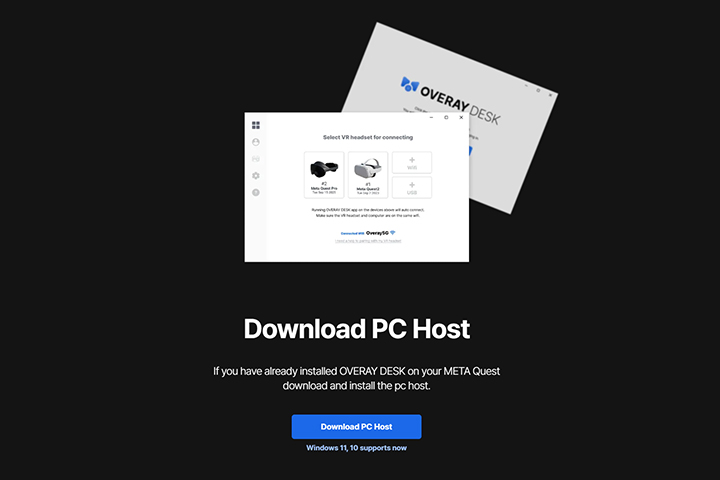
## [Download and Install PC Host on our Website](https://overay.com/#DownloadSection).
* Visit our website and navigate to the download section.
* Click the "Download PC Host" button to start the download.
* **Install PC Host** on your computer.
## Connect to your PC by pairing with the PC Host within the App.
1. **Open the PC Host** program and **log in** using your account details.
2. On the program interface, find and click the "**Pairing with VR Headset**" button.
3. **A 4-digit code will appear** on your computer screen.
4. Put on your VR device, click the > button, and then click the "**PC Link**" button.
5. **Enter the 4-digit code** displayed on your computer screen.
6. **Press the blue "Confirm" button** to establish the connection between your PC and VR device.
{% hint style="warning" %}
If your app is not connecting to your PC, please check the following:
1. **Network Connection**
* Please ensure that both your **VR device** and **PC** are connected to the **same local network**.
* Double-check the **network name** to confirm they are on the same connection.
2. **Background Processes**
* Open **Task Manager** and check under "Background Processes" to ensure the following processes are running:
* **Overay Desk PC Manager**
* **Overay Desk PC Streamer**
* **Overay Desk Supporter**
* If any of these are missing, please try quitting and restarting the **PC Host**.
If the issue persists, please don't hesitate to reach out on our **Discord channel**, and we will assist you.
{% endhint %}